Clipping articles
A clipped article is an ordinary item in your box: it shows up in your articles overview, it's searchable, and it can hang off a book, film, album or concert.
Clipping
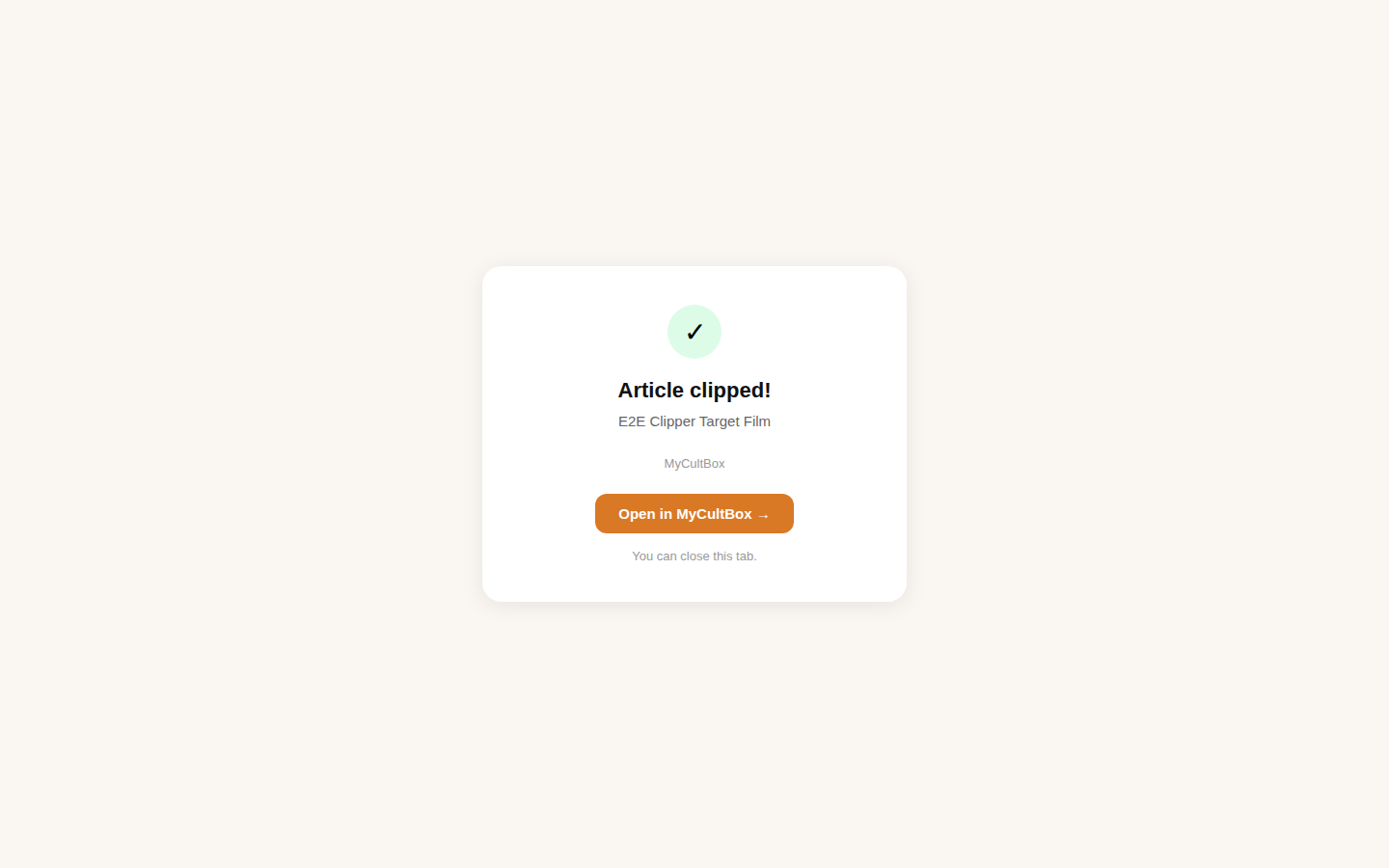
Open the article you want to keep and click the clip button in your bookmarks bar (or share the page to MyCultBox on your phone). A tab opens with a confirmation and a link to the saved article. You can close that tab right away.
What gets kept
Not the whole page, but the article: navigation, ads, cookie notices, share buttons, comment sections and Read also blocks are stripped out. What stays is the text with its headings, quotes, links and photos. Title, site, author and publication date are read off the page, and the images are copied into your own library — so the article survives the source disappearing or sliding behind a wall.
Linking it to an item
Open the article and choose Link to an item…. From then on the review sits with the book or album itself, and the article page shows which item it belongs to. It works the other way round too: while editing an item you can attach existing articles to it. Save the item once first — something that doesn't exist yet can't carry anything.
An article doesn't have to belong anywhere. An essay you loved can just live loose in your box.
Fixing it up afterwards
Every clip is editable. Under More on the article page sits the text version of the clip: that's where you repair formatting or fill gaps the extraction left behind. Title, source and publication date you change through edit.
Writing your own
To get your own review down, create a new article and pick an editor: Markdown with a live preview, a plain text editor, or uploading an HTML file — handy if you saved a page with an archiving extension.
All your articles can be exported in one go; see Exporting.